Bring Your Own Device (BYOD)
This program ensures that students have access to IT devices to assist with their learning.
The
Information, Procedures and Responsible Use Handbook (PDF, 2.7MB) outlines the expectations and responsibilities of all parties regarding the scheme, as well as suggested minimum specifications for devices. Questions related to this can be directed to the
school technicians.
What is a BYOD program?
Students are able to provide their own device for IT use at school. The school will provide access to the internet for these devices and allow them to use them in class to support teaching and learning. One of the rationales for the scheme is that students will be comfortable using a device that they 'own' and manage themselves. They should be familiar with how it works and the software installed on the device.
What kinds of device can be brought to school?
The device used by the students will need to be capable of joining the school Wi-Fi network. There is a set of specifications outlined in the school's BYOD device minimum requirements document that ensure the student's device is compatible with the school Wi-Fi network and can be connected. Microsoft Windows 11 and Apple MacBook and iPads will usually be compatible but Android devices, including Chromebooks, are not.
Is there a cost associated with the scheme?
Using Microsoft Intune, there will be no cost for connecting to the school network.
What sort of support will be offered by the school?
As the devices are owned by the students/parents, the school cannot service them. Technical support will be limited to aiding with connecting to the internet or basic troubleshooting. All legal liability of the device in terms of loss, damage or theft is also the responsibility of the owner and not the school.
Connecting 'onboarding' your device
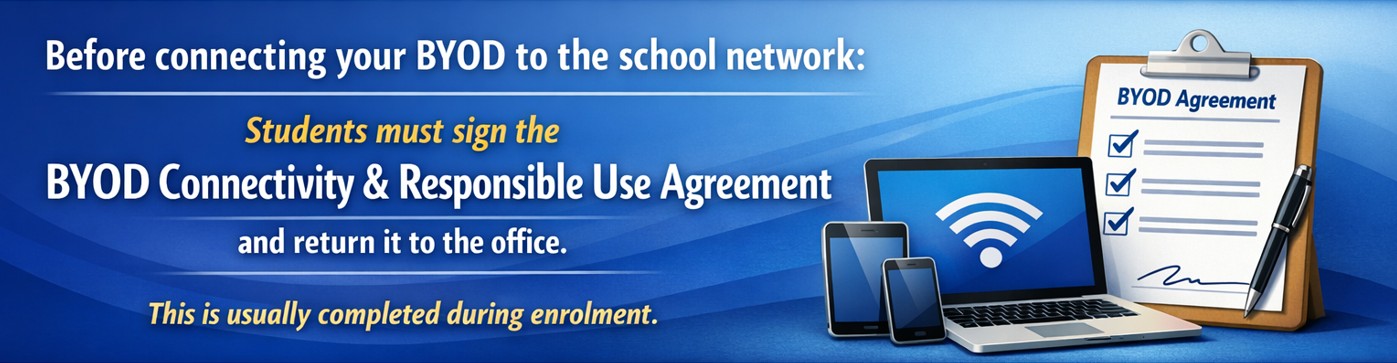 Click the link - BYOD Connectivity and Responsible Use Agreement
Connecting to the school's Wi-Fi network 'EQNET' is the next step after purchasing a device and can be accomplished by onboarding your child's compatible device with our mobile device management system BYOD Link / Intune. The onboarding process should be completed at home and must be done after completing the below steps.
-
Initial setup: complete the initial setup steps for the device after powering it on, this includes signing in with a personal Microsoft or Apple account.
-
Permissions: ensure your child's account is set as an administrator on the device.
-
Time, date and region: ensure the time, date and region are correctly set.
-
Updates: all operating system updates must be complete.
- Email and password: your child must have their school email and password ready, please have them ask a teacher for assistance if they don't know theirs.
Once you have completed the above preparation, please follow the video guide below applicable to your device type to onboard.